Power Automate: Automate Anything Right Now
Power Automate is microsoft Power Automate is, how cloud and desktop flows work, when to use free versus premium plans, and how workflow automation improves speed, consistency, and scale.
Learn what Microsoft Power Automate is, how cloud and desktop flows work, when to use free versus premium plans, and how workflow automation improves speed, consistency, and scale.
Al Rafay Consulting
· Updated June 10, 2026 · ARC Team

Many business processes still depend on manual follow-up, copy-and-paste handoffs, delayed approvals, and disconnected spreadsheets. That slows teams down, increases error rates, and makes growth harder than it should be.
Microsoft Power Automate gives organizations a practical way to automate repetitive work across Microsoft 365, line-of-business systems, desktop apps, and browser-based workflows. It helps teams replace manual tasks with repeatable flows that are easier to monitor, govern, and improve. For implementation planning and rollout support, organizations often rely on our Power Automate consulting team.
If your organization wants faster operations without building custom software for every process, Power Automate is one of the fastest places to start.
What Power Automate Actually Does
Power Automate is Microsoft’s workflow automation platform. It lets teams create rules-driven processes that start from an event, perform actions, evaluate conditions, route approvals, and record outcomes.
That can include:
- Automatically saving form submissions to SharePoint or Dataverse
- Sending approval requests in Teams or Outlook
- Updating lists, alerts, and status records across Microsoft 365
- Scheduling recurring reports or reminders
- Automating tasks in legacy or desktop applications with RPA
Instead of relying on individual users to remember every step, the flow handles the process consistently.
How Power Automate Flows Work
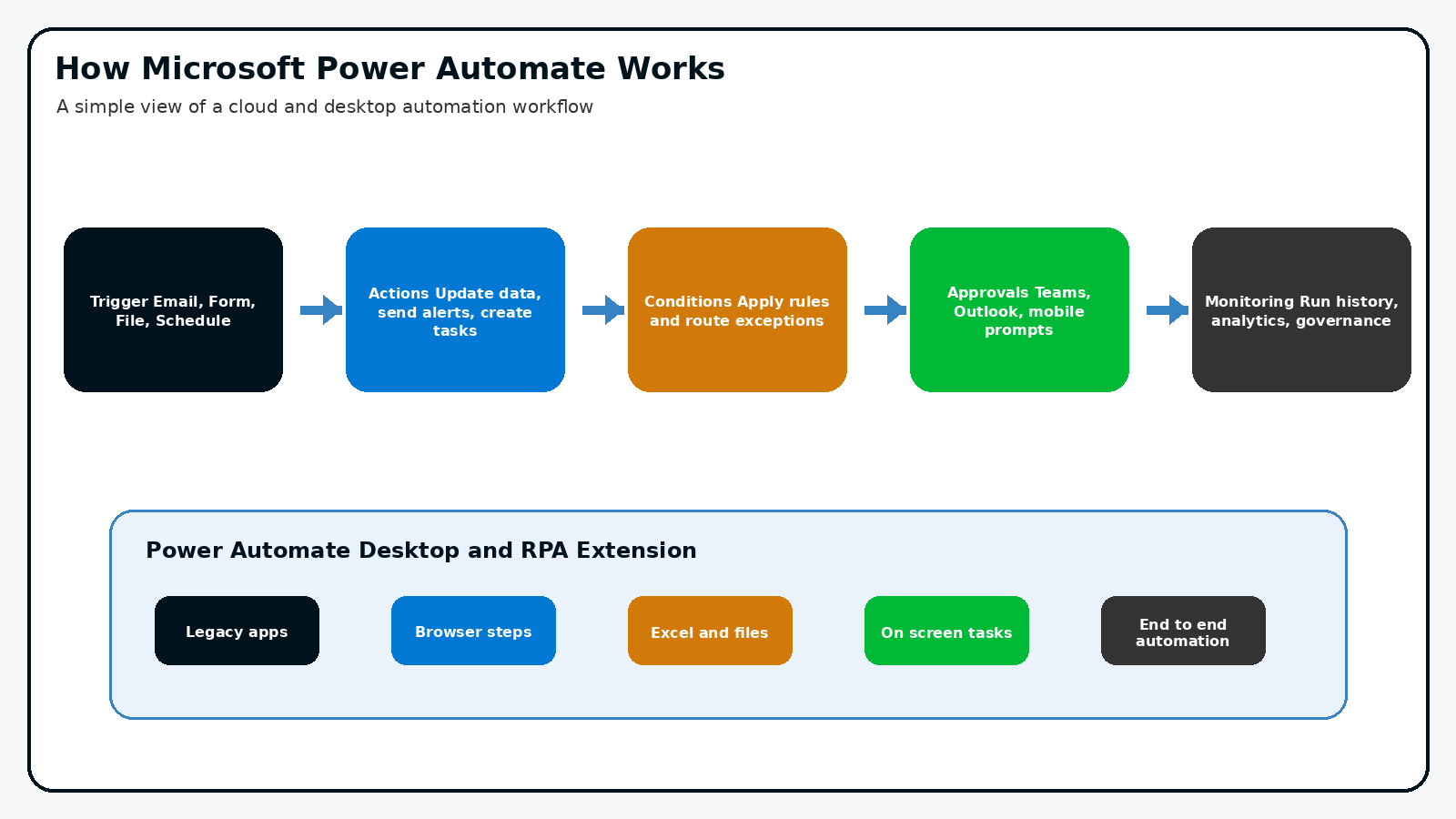
Most flows follow a simple pattern:
- A trigger starts the process
- Actions update data, send notifications, or create records
- Conditions evaluate business rules
- Approvals or human intervention happen when needed
- Monitoring captures run history and outcomes
This matters because business automation is usually not about one task. It is about turning a repeatable decision path into a governed workflow.
Common Flow Types
- Automated flows start from events such as new emails, form submissions, file creation, or row changes
- Instant flows are launched on demand by a user
- Scheduled flows run at a defined time or cadence
- Desktop flows automate UI-based work across local applications and browser steps
Why Power Automate Desktop Matters
Not every business process lives in a modern SaaS application. Many organizations still rely on legacy systems, browser-based portals, and file-driven workflows that do not expose clean APIs.
Power Automate Desktop extends automation into those environments. It can handle attended and unattended RPA scenarios where automation interacts with screens, forms, downloads, desktop files, and repetitive front-end tasks.
That makes it especially useful when teams need automation before a larger application modernization effort is complete.
Choosing the Right Power Automate Option
One of the most common questions is whether the automation you want is already included in Microsoft 365 or whether you need premium licensing.
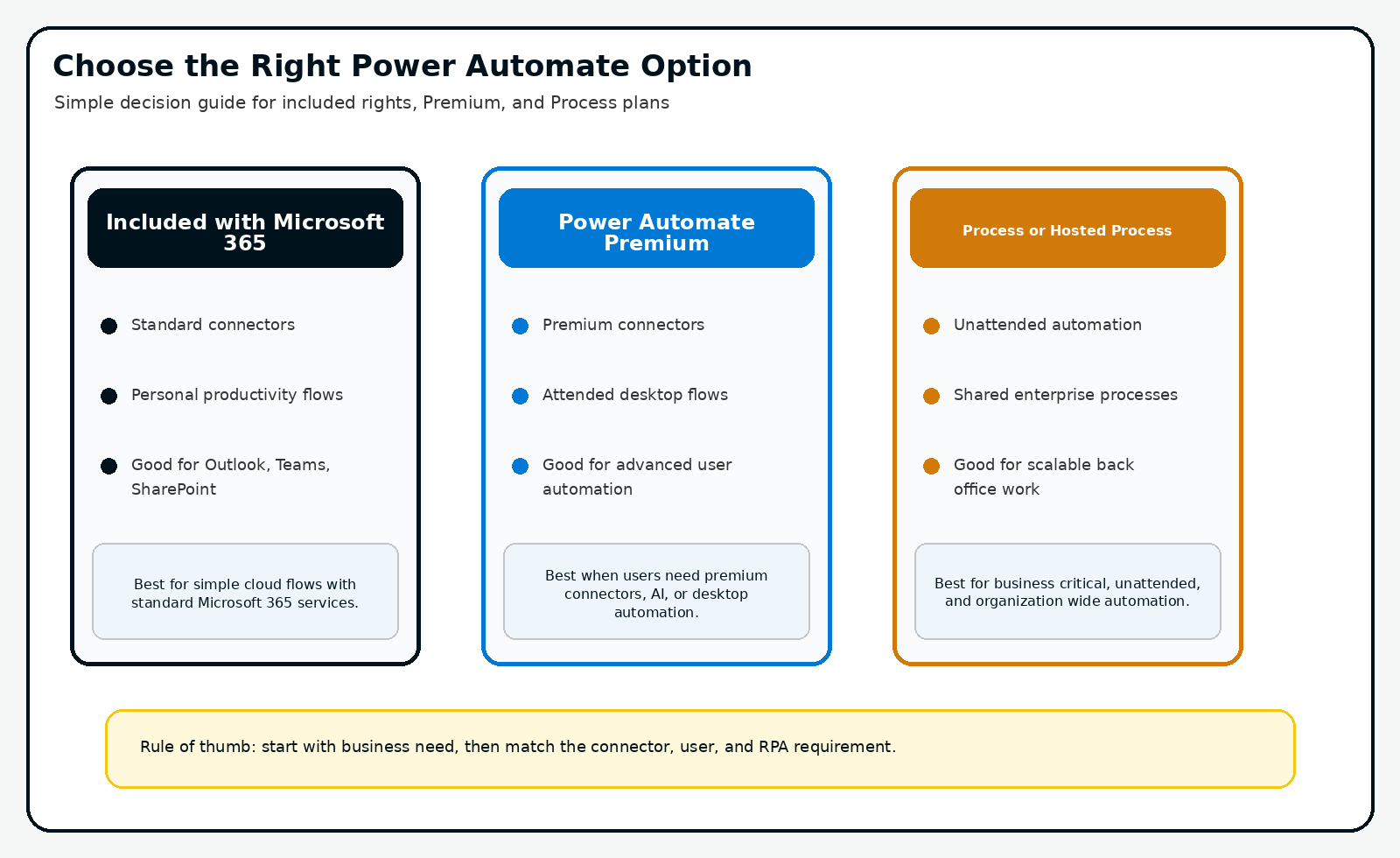
| Option | Best Fit | Notes |
|---|---|---|
| Included with Microsoft 365 | Standard cloud flows using standard connectors | Good for Outlook, Teams, Forms, and SharePoint automation |
| Power Automate Premium | Premium connectors, advanced user automation, attended desktop flows | Best when automation crosses into premium services or more advanced patterns |
| Process / Hosted Process plans | Shared, unattended, or business-critical automation | Better for scalable back-office and enterprise RPA scenarios |
The practical rule is simple: start with the business process, then match licensing to connector, user, and RPA requirements.
A Practical Power Automate Adoption Roadmap
| Phase | Focus | Outcome |
|---|---|---|
| Phase 1: Identify repetitive work | Select manual, rules-based processes with clear pain | Fast automation candidates |
| Phase 2: Build controlled first flows | Automate notifications, approvals, and updates | Early business wins |
| Phase 3: Add governance and standards | Naming, ownership, environments, DLP, support model | Safer scale-out |
| Phase 4: Expand into desktop and enterprise automation | Use RPA where APIs are limited | Broader automation coverage |
Phase 1: Identify Repetitive Work
Start where employees are wasting time on repeatable tasks: approval routing, file handling, basic notifications, and structured data handoffs.
Phase 2: Build Controlled First Flows
Prioritize flows that are easy to explain and easy to measure. This helps create trust in automation and gives the business a clear before-and-after result.
Phase 3: Add Governance Early
Without governance, flow sprawl appears quickly. Use environments, ownership rules, naming standards, data loss prevention policies, and support processes to avoid an unmanaged automation estate.
Phase 4: Expand into RPA and Cross-System Automation
Once your cloud flow model is stable, extend into desktop automation, legacy applications, and more advanced business processes where Power Automate Desktop adds value.
Business Value of Workflow Automation
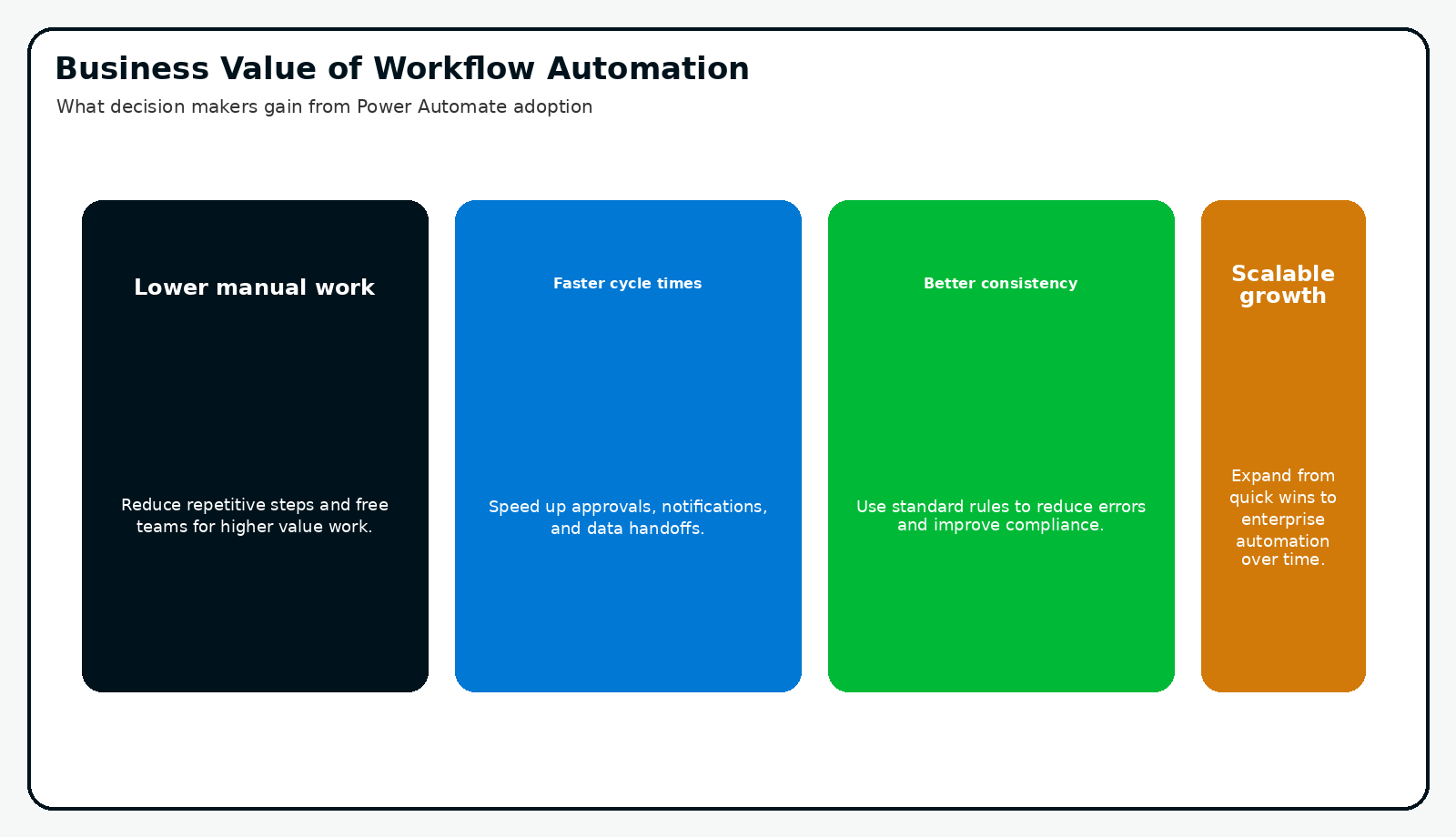
- Lower manual work: Teams spend less time on repetitive clicks, follow-up, and data re-entry.
- Faster cycle times: Approvals, updates, and notifications move without waiting for manual intervention.
- Better consistency: Standardized rules reduce variation and process drift.
- Scalable growth: Automation lets teams handle more work without adding the same amount of administrative effort.
Common Mistakes to Avoid
- Automating a broken process before simplifying it
- Ignoring environment strategy and governance
- Choosing premium licensing before confirming real connector needs
- Building flows with no owner or support plan
- Treating desktop automation as a shortcut for every process problem
Frequently Asked Questions
What is Microsoft Power Automate used for?
Power Automate is used to automate repeatable business processes such as approvals, alerts, file handling, list updates, data synchronization, and desktop tasks. It helps teams reduce manual work and standardize workflows across Microsoft 365 and other systems.
Is Power Automate included with Microsoft 365?
Many Microsoft 365 plans include rights for standard cloud automation using standard connectors. You typically need premium licensing when your automation depends on premium connectors, more advanced governance, or desktop/RPA scenarios.
What is the difference between cloud flows and desktop flows?
Cloud flows automate events and actions across connected services such as Teams, Outlook, SharePoint, and Forms. Desktop flows automate tasks directly on local applications or browser interfaces, which is useful for legacy systems and RPA scenarios.
When should an organization move to premium Power Automate licensing?
Move to premium when the business case is clear: you need premium connectors, attended desktop automation, deeper enterprise automation patterns, or stronger support for governed, cross-system processes. The decision should be based on process requirements, not just feature curiosity.
Conclusion
Power Automate is one of the most practical ways to reduce manual work, improve consistency, and scale process efficiency across Microsoft 365 and beyond. The key is not automating everything at once. It is identifying the right processes, applying the right licensing model, and putting governance in place early.
If your organization is exploring workflow automation, ARC can help with use-case identification, governance, licensing decisions, and implementation support.
Frequently Asked Questions
What is Power Automate?
Power Automate is Microsoft's workflow automation platform that connects apps and services to automate repetitive tasks, business processes, and approvals without writing code.
Do I need coding experience to use Power Automate?
No. Power Automate provides a visual drag-and-drop designer for building flows. Advanced scenarios can leverage expressions and custom connectors, but most automations are no-code.
What can Power Automate automate?
Common automations include approval workflows, email notifications, data synchronization between systems, document processing, social media monitoring, and scheduled reporting tasks.
How does Power Automate integrate with Microsoft 365?
Power Automate has deep native integration with SharePoint, Teams, Outlook, Excel, OneDrive, Dataverse, and all Microsoft 365 services — plus 1,000+ third-party connectors.
Is Power Automate included in Microsoft 365?
Basic Power Automate capabilities are included in Microsoft 365 licenses. Premium features like custom connectors, RPA (desktop flows), and AI Builder require additional Power Automate licensing.

Al Rafay Consulting
ARC Team
AI-powered Microsoft Solutions Partner delivering enterprise solutions on Azure, SharePoint, and Microsoft 365.
LinkedIn Profile