Power Automate Approval Workflows: Complete CRE & Enterprise Guide (2026)
Power Automate approval workflows are automated business processes that route decisions — such as lease agreements, purchase orders, or contract amendments — to the right people for review and authorization, without manual email chains. Built on Microsoft's Power Platform, they support sequential, parallel, and custom multi-step approval patterns, log every request in a Dataverse-backed Approvals hub, deliver requests via Teams or Outlook, and track each decision end-to-end with a full audit trail.
Build enterprise-grade Power Automate approval workflows in 2026. Sequential, parallel & AI-assisted approvals for lease, CapEx, PO & vendor processes — SharePoint, Teams & Copilot.
Al Rafay Consulting
· Updated June 9, 2026 · Microsoft Power Platform & Automation Specialists

Organizations looking to strengthen this area can work with e-signature workflows.
Commercial real estate moves on decisions. Every lease, capital expenditure, vendor contract, and purchase order requires multiple stakeholders to review, approve, and authorize before work can proceed. Manual email chains cause delays, lose audit trails, and introduce compliance risk. Microsoft Power Automate approval workflows solve all three — giving CRE firms and enterprise organizations automated, trackable, and auditable decision pipelines that integrate directly with SharePoint, Microsoft Teams, Outlook, and Copilot AI.
This guide covers everything from approval fundamentals and modern workflow patterns to real-world CRE scenarios, governance best practices, enterprise architecture, and the latest 2026 features — including Copilot-assisted flow creation and Teams-native e-signature approvals.
If your organization wants these approval patterns implemented across SharePoint, Teams, and Dataverse, our SharePoint consulting services can help design the right workflow architecture and governance model.
1. What Is Power Automate Approvals? The Technical Foundation
The Power Automate Approvals connector is a native Microsoft Power Platform capability that enables any business process requiring human authorization to be fully automated. At its core, the connector provides two primary actions:
- Start and wait for an approval — triggers the approval request and pauses the flow until a decision is received.
- Create an approval — initiates the request asynchronously, allowing the flow to continue performing other actions while awaiting the response.
When triggered, the Approvals connector sends actionable notification emails to each approver’s Outlook inbox, showing the Approve and Reject (or custom) response buttons directly in the email body — no need to open a browser. Simultaneously, the request appears in the Approvals hub inside Microsoft Teams, where approvers can act from any device.
Every approval request and decision is automatically stored in a Dataverse backend, creating a persistent audit record without any additional configuration. For CRE organizations dealing with SOX, SEC, or internal audit requirements, this out-of-the-box compliance logging is a significant operational advantage. For a broader platform overview, see Power Automate: Automate Anything Right Now.
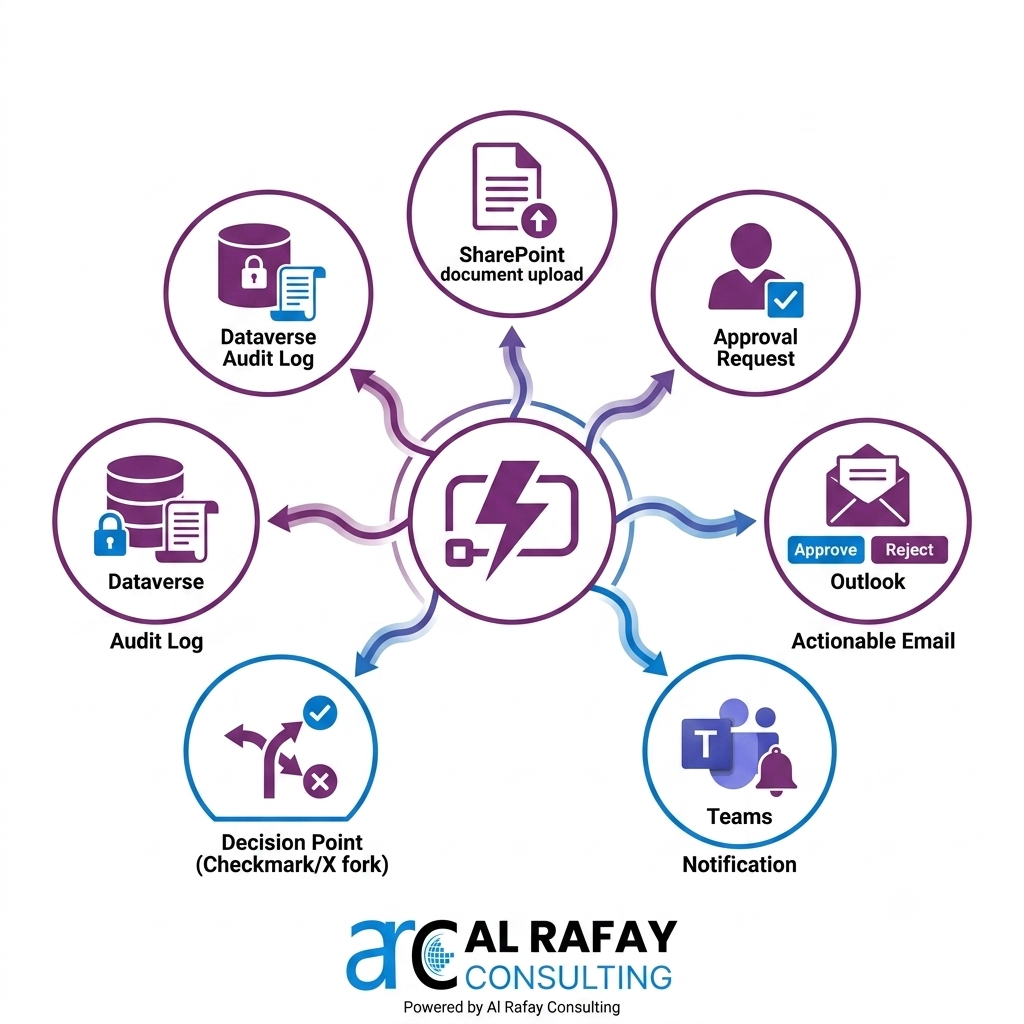
Key Technical Capabilities
Multiple Approval Types
Approve/Reject or fully custom response options (e.g., Redline, Defer, Need More Info)
Single or Multi-Stage Flows
Simple one-approver to complex multi-level cascading chains
Persistent Audit Trail
Every request and decision stored in Dataverse automatically
Event-Driven Triggers
SharePoint document upload, Teams message, Power Apps form, HTTP request
Actionable Email in Outlook
Approve/reject without leaving the inbox
Teams-Native Approvals
Manage all pending approvals from the Teams Approvals tab
2. Modern Approval Types & Patterns
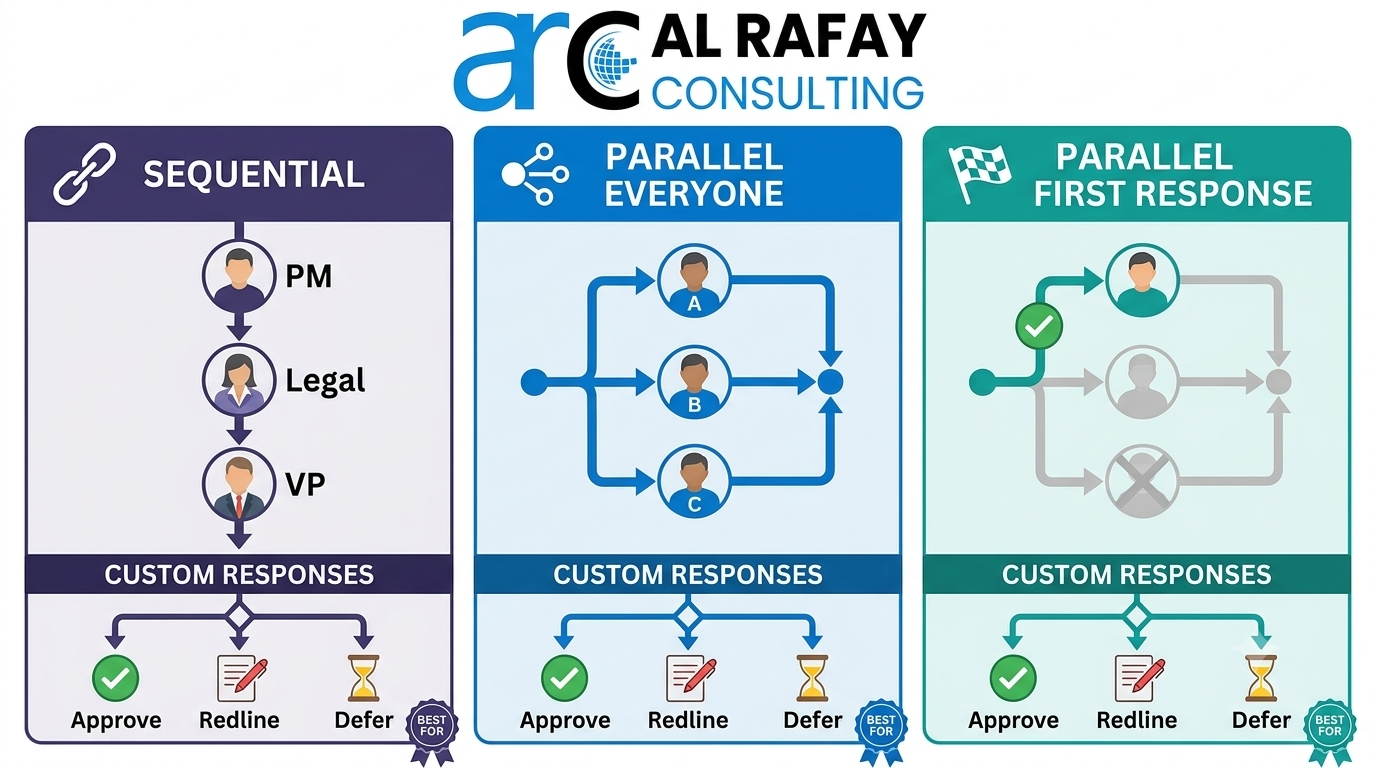
Choosing the right approval pattern is the most critical architectural decision in workflow design. Power Automate supports six core patterns that can be combined to handle virtually any business scenario:
| Pattern | How It Works | Best CRE Use Case |
|---|---|---|
| Sequential (Multi-Level) | Each approver acts in order; next person is notified only after previous approves | Lease agreements: PM → Legal → Finance → VP |
| Parallel (Everyone Must Approve) | All approvers receive the request simultaneously; unanimous consent required | Compliance-critical: Legal + Finance + Risk in parallel |
| Parallel (First to Respond) | All approvers receive simultaneously; first response decides the outcome | Time-sensitive maintenance or emergency CapEx decisions |
| Custom Responses | Replace Approve/Reject with tailored options (e.g., Redline, Defer, Approved with Conditions) | Contract review cycles with nuanced feedback options |
| Dynamic Routing | Approvers determined at runtime based on data (department, value, property, region) | CapEx tiers: <$10K → PM only; $10K–100K → PM + VP; >$100K → CFO required |
| Escalation & Deadline | Reminders sent after N hours; auto-escalated to manager if no response by deadline | PO approvals with 48-hour SLA enforcement |
| E-Signature Integration | Teams Approvals routes to Adobe Acrobat Sign or DocuSign for legally binding signatures | Final lease execution or contract amendments requiring wet-equivalent signatures |
For most CRE organizations, a combination of patterns is the correct approach. A lease agreement approval, for example, might use parallel approvals for Legal and Finance review (they can work concurrently), followed by a sequential final sign-off from the VP, with an e-signature step at the end. Power Automate’s flow designer makes it straightforward to connect these patterns with conditional branching.
3. Integration with SharePoint, Teams, Outlook, Dataverse & Power Apps
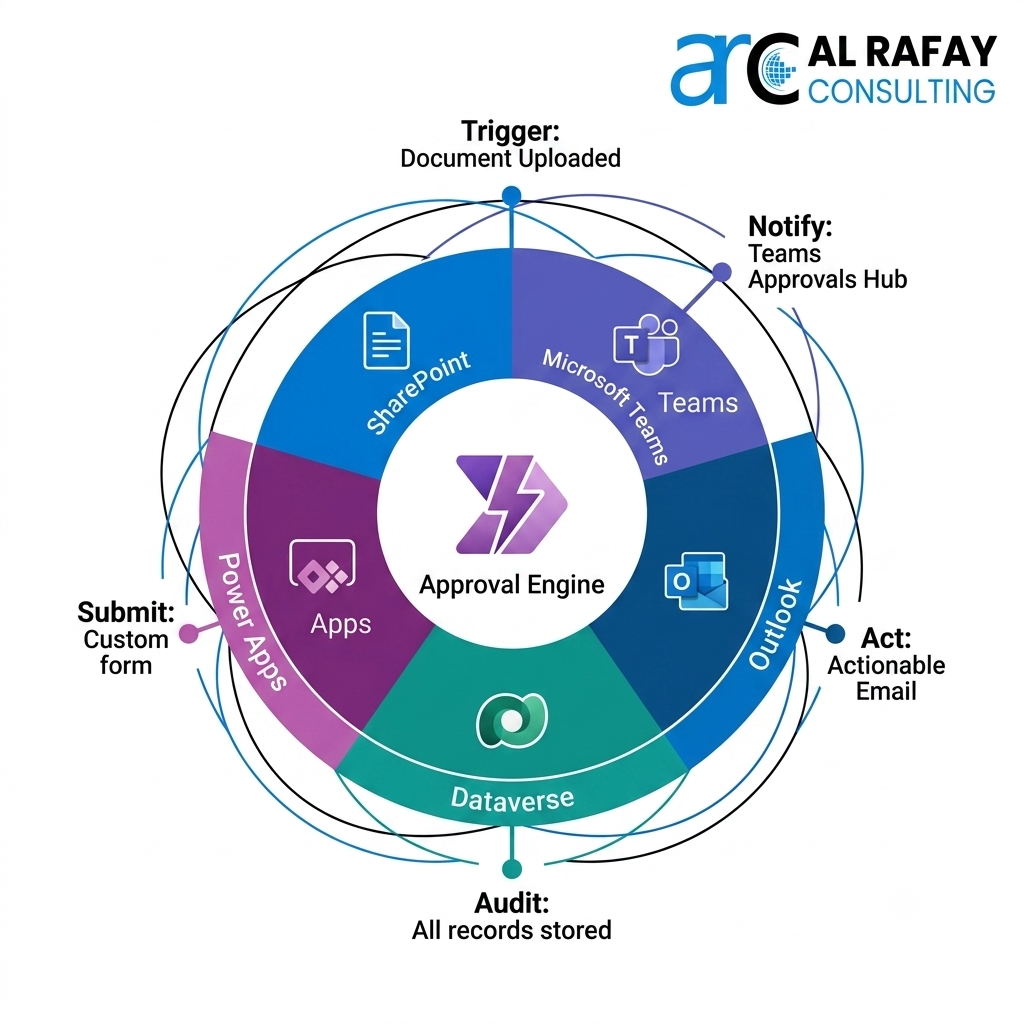
One of Power Automate’s strongest advantages is its deep integration across the Microsoft 365 and Power Platform stack. In CRE environments, approval workflows rarely exist in isolation — they connect documents, data, communications, and enterprise systems together.
SharePoint
SharePoint is typically the trigger point for CRE approval workflows. When a new lease document is uploaded to a SharePoint library, a contract list item is updated, or a CapEx request is created in a SharePoint list, Power Automate can automatically start an approval flow. Post-approval, the flow can update the item’s status column, move the document to a ‘Approved’ folder, apply a Purview retention label, and send a notification — all without human intervention.
Microsoft Dataverse
Dataverse is the backbone of the Approvals feature. Every approval request is stored as a Dataverse record, providing a queryable, auditable history that integrates natively with Power BI for reporting. For enterprise CRE firms tracking approval cycle times, bottlenecks, and compliance metrics, Dataverse is the data foundation that makes those analytics possible.
Microsoft Teams
The Teams Approvals app aggregates all pending, completed, and rejected approvals in a single hub accessible from any Teams client. Approvals initiated from any Power Automate flow appear here automatically. Approvers can respond, leave comments, and attach supporting documents directly in Teams — and with the 2024 Adaptive Card enhancements, approvals now render richly within Teams chats and channels.
Outlook
Actionable Messages in Outlook allow approvers to respond to approval requests directly from their email inbox. For CRE executives who spend most of their day in email rather than Teams, this removes all friction from the approval experience. The approve/reject buttons render natively in both desktop Outlook and Outlook on the web.
Power Apps
Power Apps surfaces Power Automate approval workflows inside custom-built CRE applications. A property manager’s renovation request app, a vendor onboarding portal, or a tenant maintenance request form can all trigger approval flows when the ‘Submit’ button is pressed — connecting front-end user experience seamlessly to back-end approval automation.
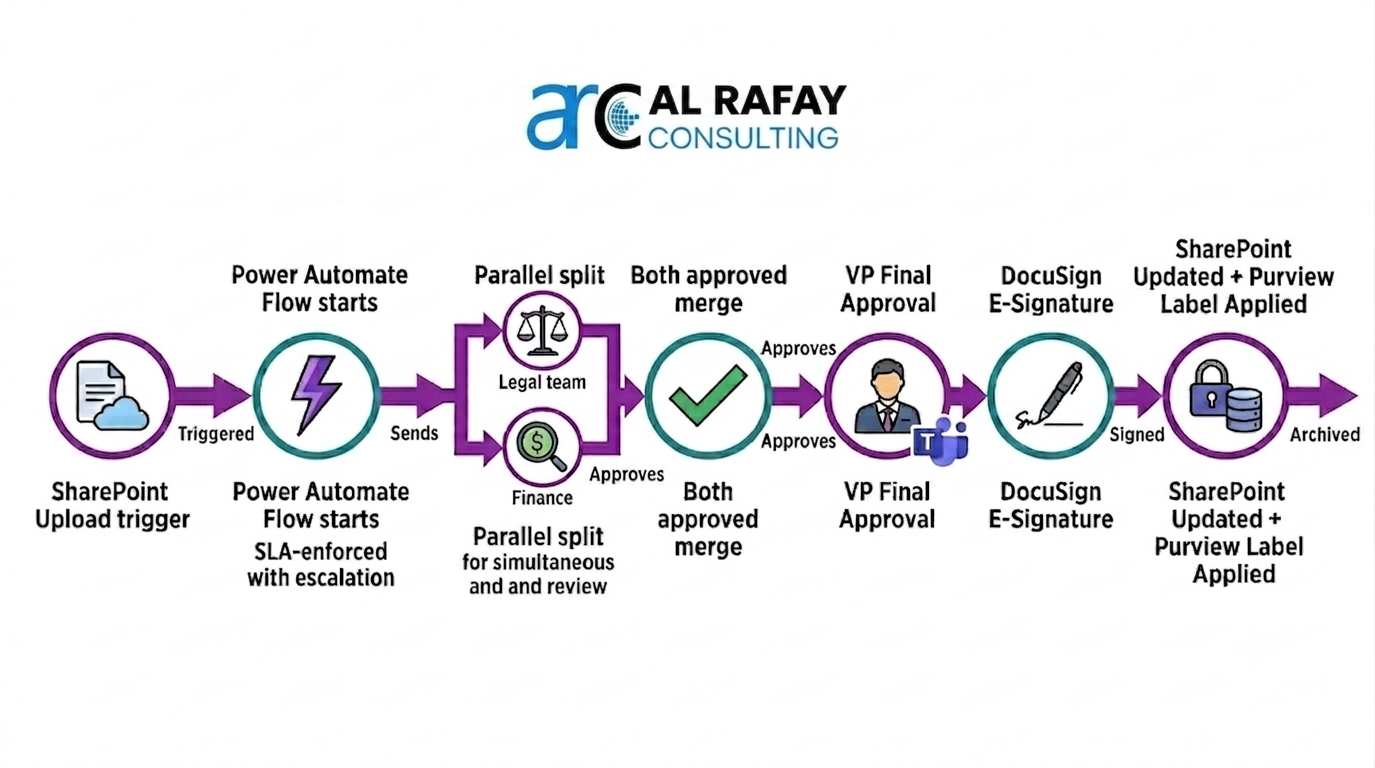
Integration Flow Example: Lease Approval End-to-End
Property Manager uploads signed lease draft to SharePoint → triggers Power Automate flow
Flow sends parallel approval requests to Legal Counsel and Finance (Teams + Outlook)
Legal team responds in Teams Approvals; Finance approves via Outlook Actionable Message
Flow proceeds to VP final approval (sequential); VP signs via DocuSign integration in Teams
Flow updates SharePoint item status to ‘Executed’, applies Purview retention label, notifies tenant
Full approval history stored in Dataverse; auto-surfaced in Power BI compliance dashboard
4. Real-World CRE Approval Scenarios: Use Cases That Deliver ROI
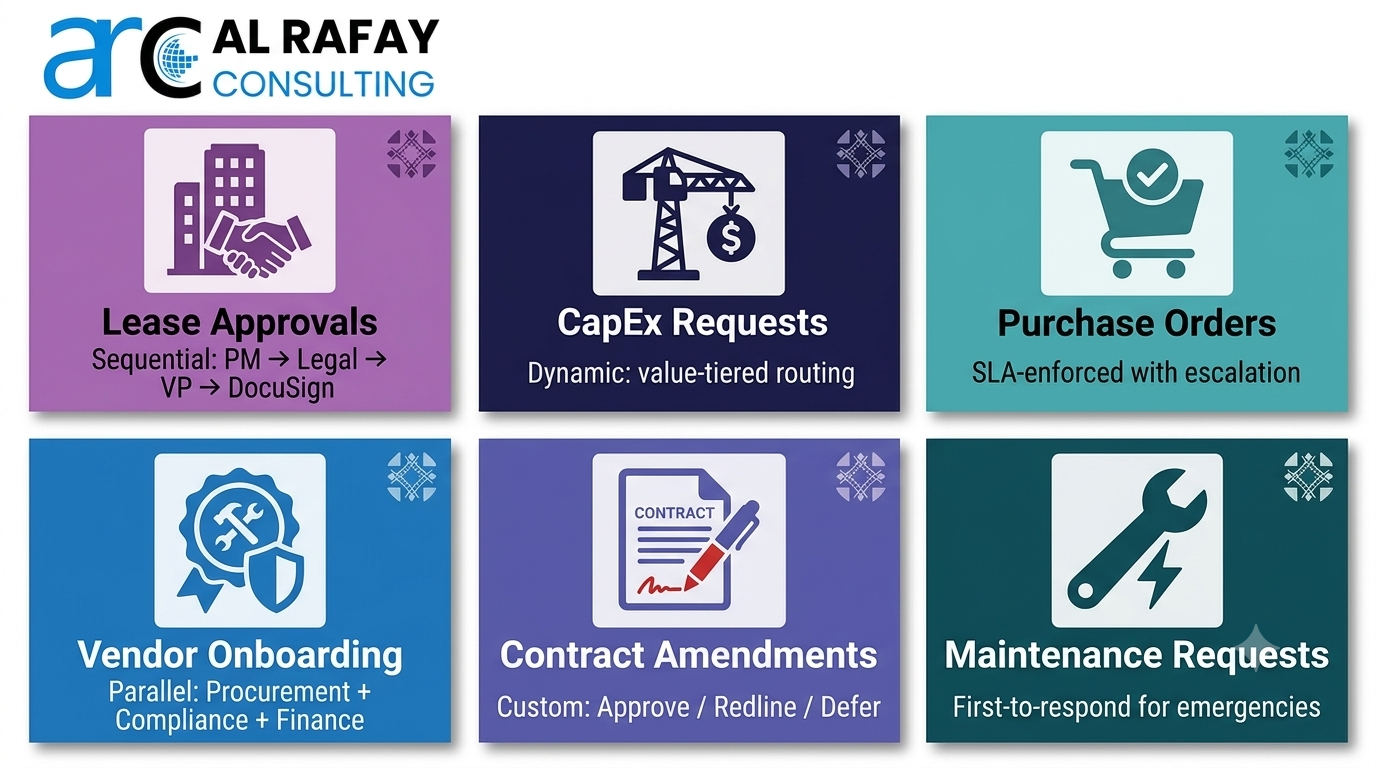
Power Automate approval workflows are purpose-built for the high-stakes, multi-stakeholder decision processes that define CRE operations. Here are six core scenarios with implementation guidance:
Lease Agreement Approvals
New lease document uploaded to SharePoint contract library
Parallel (Legal + Finance) → Sequential (VP) → E-Signature (DocuSign)
Eliminates 3–5 day email chains; full audit log for SOX and SEC compliance
💡 Power Tip:
Use Dynamic Routing to escalate to CFO if lease value exceeds $1M threshold
Capital Expenditure (CapEx) Request Approvals
CapEx request submitted via Power Apps form → written to SharePoint list
Dynamic tier routing based on project value; escalation after 48-hour SLA breach
Consistent CapEx governance across all properties; eliminates shadow spend
💡 Power Tip:
Connect to ERP (SAP, Dynamics 365) via connector to auto-post approved CapEx orders
Purchase Order (PO) Approvals
PO record created in Dynamics 365 / SharePoint list or via Power Apps form
Single approver for <$5K; two-stage sequential for $5K–$50K; three-stage for >$50K
Standardized PO governance; auto-rejection if budget code is missing or over limit
💡 Power Tip:
Apply automated GL coding validation before routing to avoid revision loops
Vendor Onboarding Approvals
New vendor record created in vendor management SharePoint list or Dataverse
Parallel approvals — Procurement, Compliance, and Finance review simultaneously
Vendors onboarded in days not weeks; full compliance screening documented automatically
💡 Power Tip:
Auto-send vendor a Power Apps onboarding form to collect W-9, insurance certs, and banking details as first step
Contract Amendment & Variation Approvals
Contract amendment document uploaded to SharePoint; list item updated with ‘Amendment Requested’ status
Custom responses — Approve, Approve with Conditions, Reject, Request Redline
Structured review cycle; all comments and conditional approvals captured in Dataverse
💡 Power Tip:
Use SharePoint version control so each approval cycle is tied to a specific document version
High-Value Maintenance Request Approvals
Maintenance request form (Power Apps or SharePoint list) flagged as high-cost (>$10K)
First-to-respond parallel (Facility Manager + Property Owner) for urgent repairs
Emergency approvals resolved in minutes; standard requests tracked against SLA
💡 Power Tip:
Integrate with work order system (ServiceNow, Dynamics 365 Field Service) to auto-create work orders post-approval
5. Governance, Security & Compliance for CRE Approval Flows
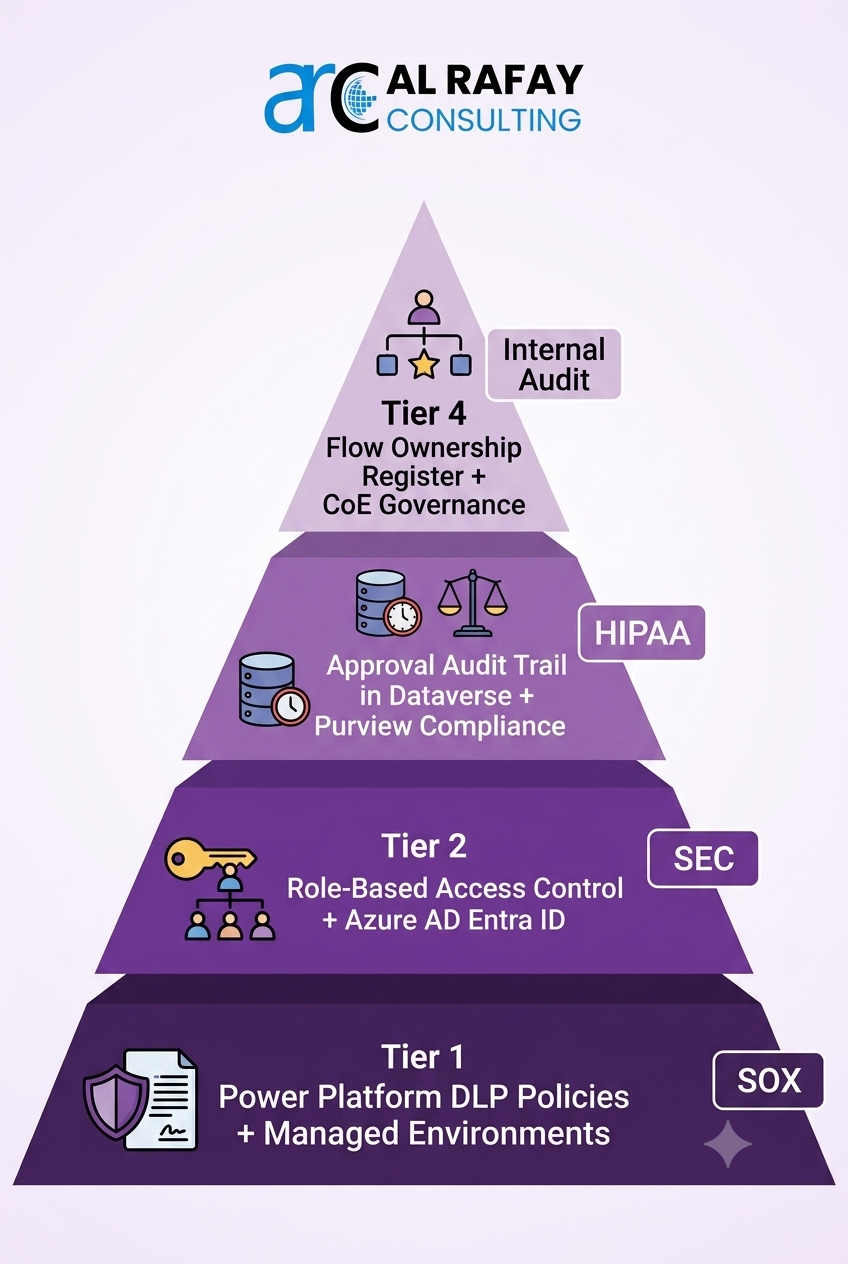
Approval workflows in CRE operate at the intersection of financial controls, legal obligations, and regulatory requirements. Building governance into your flows from day one — not as an afterthought — is essential.
| Governance Area | Recommended Approach |
|---|---|
| Data Loss Prevention (DLP) | Classify SharePoint, Teams, Outlook as ‘Business’ connectors; block unclassified connectors from approval flows. Set DLP policies in Power Platform Admin Center. |
| Access Control & Permissions | Use Azure AD / Microsoft Entra ID role-based assignments. Only Leasing team members should trigger lease approval flows; only Finance managers can approve CapEx. |
| Approval Audit Trail | Dataverse automatically logs all approval events. Supplement with Microsoft Purview audit logs and Power BI dashboards for compliance reporting. |
| Retention of Approval Records | Apply Microsoft Purview retention labels to SharePoint items post-approval. Align retention periods with SOX (7 years), HIPAA (6 years), or internal policy. |
| Managed Environments & CoE | Deploy critical approval flows into Managed Environments (premium). Adopt the Microsoft Power Platform Center of Excellence (CoE) Starter Kit for usage telemetry and governance. |
| External Party Approvals | For clients or vendors outside your tenant, use e-signature connectors (DocuSign, Adobe Sign) rather than sharing internal Approvals. Adaptive Card emails can reach external users with secure links. |
| Flow Ownership & Documentation | Every approval flow must have a named owner. Maintain a flow register in SharePoint listing each flow, owner, trigger, approvers, and last review date. |
For organizations subject to financial regulations, the combination of Power Automate’s Dataverse audit log, SharePoint’s version history, and Microsoft Purview’s compliance features creates a defensible, three-layer audit architecture that satisfies SOX Section 302/404, SEC Rule 17a-4, and internal controls requirements. For a deeper look at records retention, see our document retention guide for life-sciences REITs.
6. Scaling & Enterprise Architecture: ALM for Approval Workflows
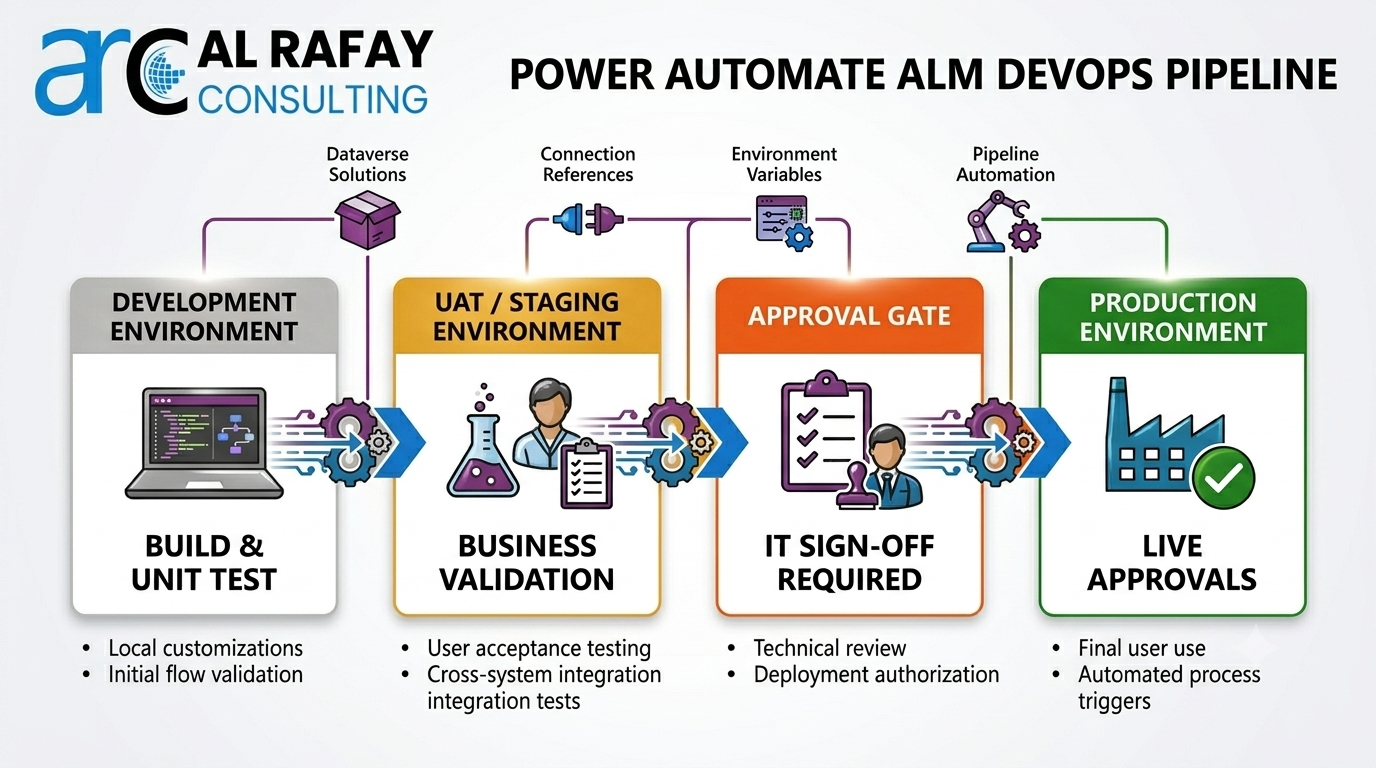
As approval workflows move from pilot to enterprise-wide deployment across a CRE organization’s portfolio, scalability and application lifecycle management (ALM) become critical. Ignoring these concerns leads to unmanaged flows, orphaned approvals, and governance failures.
The 30-Day Flow Timeout Problem
By default, Power Automate cloud flows timeout after 30 days. For CRE approval processes — such as large lease negotiations or multi-board CapEx approvals — this is a real risk. Microsoft’s recommended solution is to split long-running approvals into child flows using the ‘Run a child flow’ action, with a parent flow that monitors approval status using Dataverse queries. This pattern allows effectively unlimited approval duration while maintaining full audit continuity.
Environment Strategy
| Environment | Purpose | Who Has Access |
|---|---|---|
| Development | Build and unit-test new or updated flows; no live approvals | Power Platform developers and IT architects |
| UAT / Staging | Business user testing with representative data; simulated approval scenarios | IT team + selected business stakeholders |
| Production | Live approval workflows serving real CRE operations | End users (makers cannot edit directly in Prod) |
| Default (blocked) | Personal/ad-hoc flows only; no critical CRE workflows | All M365 users — monitored for shadow IT |
ALM Best Practices
- Package flows in Dataverse Solutions to enable environment-to-environment promotion via managed solutions.
- Use Connection References and Environment Variables — never hardcode site URLs, group IDs, or email addresses. This makes flows portable across Dev → UAT → Prod.
- Maintain flow export/import history in Azure DevOps or GitHub for version tracking of workflow logic changes.
- Enforce Power Platform Pipelines for automated promotion from Dev to UAT to Production, with mandatory approval gates.
- Run the Solution Checker (built into Managed Environments) on every flow before promotion to Production to catch design anti-patterns.
7. Monitoring, Troubleshooting & Performance Optimization
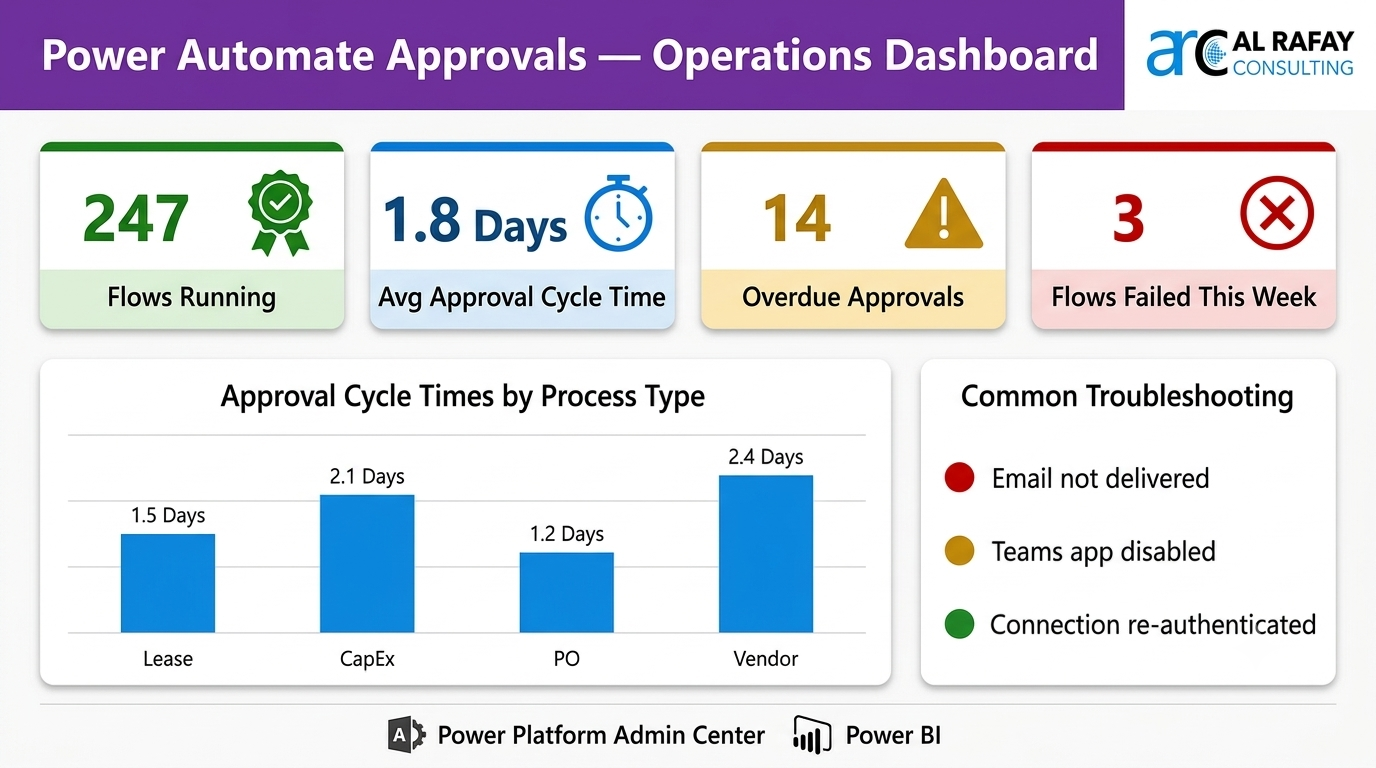
Deploying approval workflows is only half the job. Ongoing monitoring ensures flows remain reliable, performant, and aligned with changing business processes.
Monitoring Tools
- Flow Run History — each run shows success/failure status and step-by-step execution trace, available directly in the Power Automate portal.
- Power Platform Admin Center Analytics — tenant-wide view of flow run counts, success rates, and active/inactive flows by environment.
- Power BI + Dataverse — build a real-time approval dashboard showing cycle times, bottleneck approvers, overdue approvals, and rejection rates.
- Microsoft 365 Audit Log — records all Power Automate flow triggers and completions for compliance and security investigation.
Troubleshooting Quick Reference
| Symptom | Root Cause & Fix |
|---|---|
| Approver not receiving email | Check Outlook actionable message is enabled in Exchange Admin; verify approver has Power Automate access and valid M365 license |
| Teams approval not appearing | Verify Teams Approvals app is enabled in Teams admin center; check if flow is running in correct environment |
| Flow failing at approval step | Check connection credentials — expired service account or connection; re-authenticate the Approvals connection in flow settings |
| Approval expired / timed out | Flow hit 30-day limit. Implement child flow pattern for long-running approvals; set reminders at 7 and 14 days |
| Duplicate approval notifications | Flow triggered multiple times from same event. Add concurrency control or check for duplicate trigger condition on SharePoint list item |
| Wrong approver receiving request | Dynamic routing expression error. Debug by adding ‘Compose’ action to log calculated approver value before approval action |
Performance Optimization Tips
- Use OData filter queries on SharePoint Get Items actions to retrieve only relevant records — never retrieve all items and filter in the flow.
- Parallelise independent actions (email notifications, SharePoint updates) using parallel branches rather than sequential actions.
- For high-volume environments (hundreds of approval flows per day), use Dataverse triggers rather than SharePoint triggers to reduce throttling risk.
- Regularly review inactive flows in the Admin Center — orphaned flows consume API call quota and licensing headroom.
8. New in 2026: Copilot, AI-Assisted Approvals & Latest Features
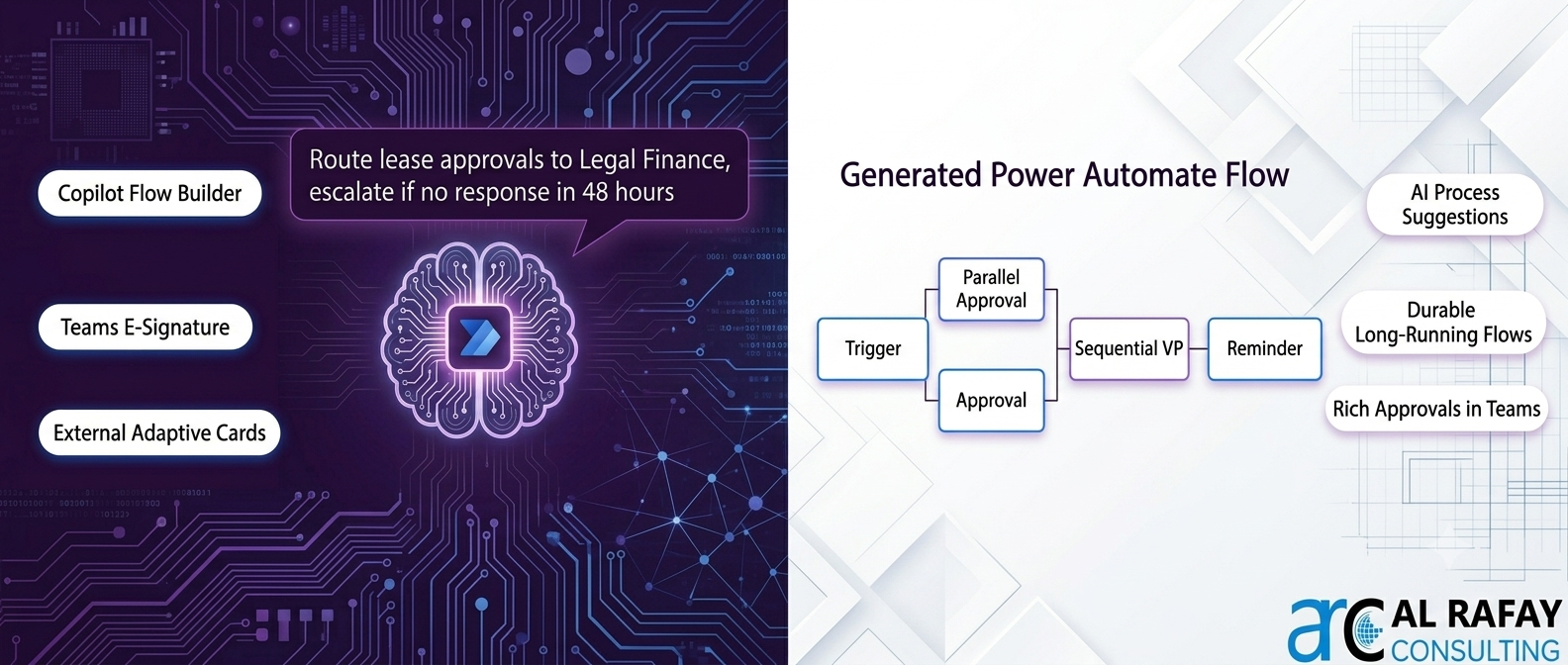
Microsoft’s investment in Power Automate continues at a rapid pace. In 2025–2026, several features have materially changed how approval workflows are built and experienced:
| Feature | What It Means for CRE Teams |
|---|---|
| Power Automate Copilot (GA 2025) | Describe an approval workflow in plain English (‘Route lease approvals to Legal then Finance, escalate if no response in 48 hours’) and Copilot generates the complete flow. Reduces build time from days to minutes. |
| Teams Approvals App Enhancements | Now supports rich file attachments, custom approval response options, and full Adaptive Card rendering in Teams channels. Approvals team-visible not just individual-recipient. |
| Native E-Signature in Teams Approvals | Select ‘Electronic signature’ approval type directly in Teams Approvals. Routes to Adobe Acrobat Sign or DocuSign without leaving Teams. No separate integration build required. |
| ‘Create approval for item or file’ Action | New SharePoint-specific action that automatically populates the approval item title and link from the SharePoint context, reducing configuration effort significantly. |
| External User Approvals via Adaptive Cards | External parties (clients, vendors, external counsel) can now respond to approval requests via secure email links rendered as Adaptive Cards — no tenant account required. |
| AI-Powered Process Suggestions | Power Automate’s process mining and Copilot can analyze existing manual workflows and proactively suggest automation opportunities, including approval flows, based on observed patterns. |
| Improved 30-Day Long-Running Solution | Microsoft has introduced enhanced support for durable flows in premium environments, extending effective approval duration and simplifying the child-flow workaround for long negotiations. |
For CRE organizations evaluating the ROI of Power Platform investment, the Copilot capability alone dramatically reduces the citizen developer barrier — property managers and operations staff can describe approval processes in plain language and have working flows within minutes, reviewed and promoted to production by IT using the ALM pipeline.
9. Implementation Roadmap: From Pilot to Enterprise Deployment
Rolling out Power Automate approval workflows across a CRE organization requires a structured approach. Rushing directly to enterprise deployment without a pilot creates governance debt and adoption resistance. Follow this proven roadmap:
Discovery & Process Mapping (Week 1–2)
- → Inventory all manual approval processes — interviews with operations, legal, finance, and property management teams
- → Map each process: trigger, approvers, SLA, exceptions, audit requirements
- → Prioritize: identify 1–2 high-impact, medium-complexity processes for the pilot (lease approval or PO approval are ideal starting points)
- → Document the current state process in a swimlane diagram; identify bottlenecks and handoff failures
Environment Setup & Governance (Week 2–3)
- → Create Development and UAT environments in Power Platform Admin Center
- → Configure DLP policies: classify all required connectors as Business
- → Establish CoE governance standards: naming conventions, flow ownership policy, connection reference standards
- → Deploy Power Platform CoE Starter Kit for monitoring and reporting from day one
Pilot Build & Testing (Week 3–6)
- → Build pilot approval flow in Development environment using Sequential/Parallel pattern appropriate to the process
- → Use Environment Variables and Connection References — no hardcoded values
- → Package in a Dataverse Solution; run Solution Checker; resolve all warnings
- → Deploy to UAT; conduct user acceptance testing with real business stakeholders; iterate on approval email design and custom responses
Production Launch & Adoption (Week 6–8)
- → Promote managed solution to Production via Power Platform Pipelines with IT sign-off
- → Decommission the manual email/Teams-chat approval process on go-live date
- → Train all approvers: 15-minute walkthrough of Teams Approvals hub and Outlook Actionable Messages
- → Assign flow owner; schedule first 30-day review to analyze run history, cycle times, and user feedback
Scale & Optimize (Month 2 onwards)
- → Use Copilot to rapidly build additional approval flows for CapEx, vendor onboarding, contract amendments
- → Connect Dataverse approval data to Power BI for portfolio-wide approval analytics
- → Implement e-signature integration for lease execution and contract signing
- → Quarterly review of flow performance, SLA compliance, and approver bottlenecks via Admin Center analytics
Frequently Asked Questions
What license do I need to use Power Automate approvals?
Basic Power Automate approvals are included with Microsoft 365 Business Basic/Standard and E1/E3/E5 licenses. For premium connectors (Dataverse, SAP, custom APIs), Power Automate Premium (formerly Per User Plan) is required at approximately $15/user/month. Most CRE organizations with M365 E3 already have the required license for SharePoint and Teams-based approval flows.
How long can a Power Automate approval flow run before it times out?
Standard Power Automate cloud flows have a 30-day execution limit. For approval processes that may run longer — such as complex lease negotiations or board-level CapEx approvals — Microsoft recommends using child flows with Dataverse monitoring patterns, or leveraging Durable Functions-like patterns available in premium managed environments. The 2025/2026 platform updates have significantly improved long-running flow reliability.
Can external parties (vendors, clients, legal counsel) participate in Power Automate approvals?
Yes, with the right approach. While standard approvals require the approver to have an account in your tenant (or be a guest), the newer Adaptive Card-based external approvals allow external users to respond via a secure email link without a Microsoft account. For legally binding sign-offs, integrating DocuSign or Adobe Acrobat Sign via the Teams Approvals e-signature feature is the recommended enterprise approach.
How do I handle approval escalations when approvers don't respond in time?
Use the Delay Until action combined with the Cancel and wait for a new approval pattern. Set a deadline (e.g., 48 hours), then use a parallel branch: one branch waits for the approval response, the other delays 48 hours and then checks if approval is still pending. If pending, it sends a reminder and after a second delay (e.g., 24 hours), escalates to the approver's manager. Populate the manager email dynamically using the Microsoft 365 Users connector (Get manager action).
Is the approval audit trail in Dataverse sufficient for SOX and SEC compliance?
Dataverse provides a strong base audit trail covering who requested, who approved/rejected, when, and any comments. For full SOX/SEC compliance, supplement this with Microsoft Purview audit logs (capturing all M365 activities), SharePoint version history for the underlying documents, and a Power BI compliance dashboard that surfaces approval decisions alongside document metadata. This three-layer architecture typically satisfies both SOX Section 302/404 and SEC Rule 17a-4 requirements.
What is the difference between 'Everyone must approve' and 'First to respond' approval types?
'Everyone must approve' requires unanimous consent from all named approvers before the flow proceeds. If any single approver rejects, the request is rejected. This is ideal for compliance-critical decisions (e.g., vendor onboarding requiring Compliance, Finance, and Procurement sign-off). 'First to respond' sends the request to all approvers simultaneously and acts on whichever response arrives first — suitable for time-sensitive decisions where any qualified approver can authorize (e.g., emergency maintenance approval).
How does Power Automate Copilot help build approval workflows?
Power Automate Copilot (generally available from 2025) allows you to describe an approval workflow in plain English and have the AI generate the complete flow structure, including triggers, approval actions, conditional branching, and notification steps. For example: 'When a new item is added to the CapEx Requests SharePoint list, route it to the department manager for approval. If the amount is over $50,000, also send to the CFO. Send a reminder after 48 hours if no response.' The generated flow can then be reviewed, refined, and promoted to production by your Power Platform developer.
Can Power Automate approvals integrate with DocuSign or Adobe Sign for e-signatures?
Yes. The Microsoft Teams Approvals app has native integration with both DocuSign and Adobe Acrobat Sign. When creating an approval in Teams, select 'Electronic signature' as the approval type and choose your e-signature provider. The document is automatically sent for signature as part of the approval flow. For flows built entirely in Power Automate (outside Teams), dedicated connectors for DocuSign and Adobe Sign allow you to create and track signature requests as actions within any approval workflow.
How many approval flows can run simultaneously in a Power Automate environment?
Power Automate enforces API request limits based on licensing tier rather than a hard concurrent flow cap. M365-licensed flows receive 6,000 API calls per user per day (pooled). Power Automate Premium provides 40,000 API calls per user per day. For high-volume CRE environments (hundreds of approvals daily across multiple properties), Power Automate Process licenses (previously Flow per Business Process) offer unmetered runs for specific scenarios. Work with your Power Platform architect to model API consumption before enterprise deployment.

Al Rafay Consulting
ARC Team
AI-powered Microsoft Solutions Partner delivering enterprise solutions on Azure, SharePoint, and Microsoft 365.
LinkedIn Profile